
If you have aspirations to be a fabric pattern design artist, Photoshop is right there on top as a magic tool for all your creative work. When I worked at an advertising company, watching their technical team create different effects in Photoshop, it looked like a very difficult task. But after using it now, I think that Photoshop is not as difficult as it seems. Maybe it is, but for making simple fabric patterns, not so much. And the possibilities are endless. Mind you, it is a paid tool. Yes, in this world of free information it is a setback, I know, but the quality of the tool justifies the expense.
I will show you how to design a fabric with lots of hearts with a half-Drop pattern repeat in Photoshop which is what I did, but as I said, the possibilities are endless in making your dream fabric.
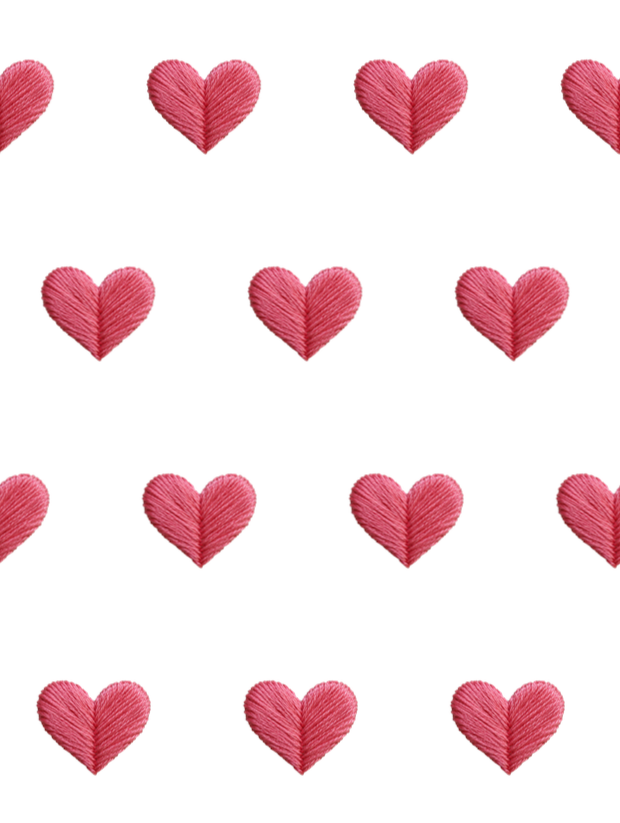
The difference between Illustrator and photoshop is that as Photoshop is a pixel based tool, it works better with photographed textured motifs. The hack in Photoshop that I love for pattern making is its built-in fill feature. It does the fill automatically – no manual dragging or controlling the spacing by straining your brains and wrists.
Easy way to design fabric prints in Photoshop
The purpose is to make a repeat tile – this repeat tile will be repeated across your fabric. Photoshop gives you as many options as Illustrator. I have explained making fabric designs in illustrator and other tools with videos.
Step 1. Create your motif
I assume that you have already sketched or photographed your motif.
Drawing directly on an iPad instead of fiddling with keyboard or mouse is a blessing for artists. I learned to draw on paper and then moved to iPad – isn’t it great being a designer in this era ?
And if drawing isn’t your thing, you can use the thousands of existing vector artworks (which you can legally use). What a world to design in!.
Take a clear front facing photo of your motif – what I do is this shortcut – scan it using my phone on the notes app as a document. Gives me a clear picture with great colors. And straightens it and the lighting can be adjusted to just perfect.
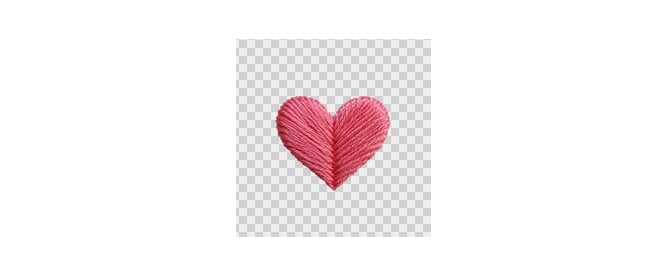
The motif has to be on a transparent background -if you took a photo it will have to be converted to a transparent background. You can use Photoshop’s own remove background feature for this or do it on Canva.
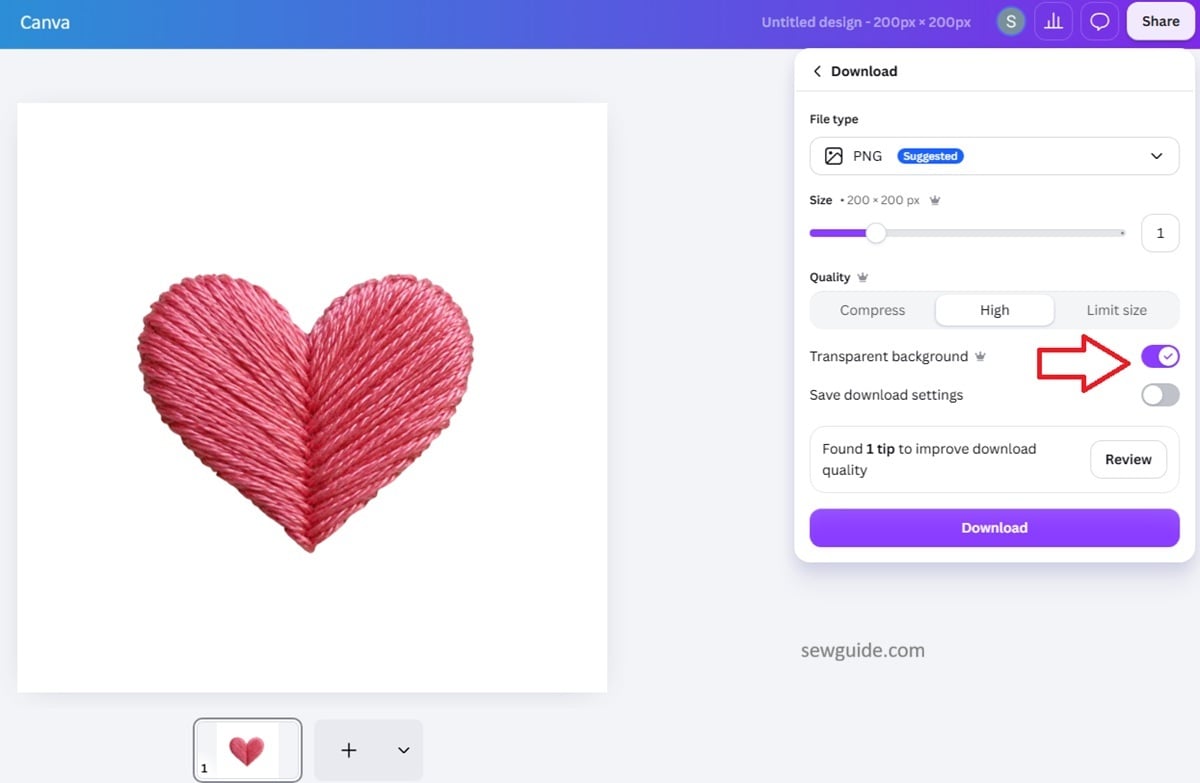
You will have this file saved as a png (Not jpeg – because you cannot have transparent background on jpeg). Now, it needs to be converted into a file that Photoshop will take as a pattern motif.
For that open the motif file in Photoshop first and then Go to Edit > Define Pattern and name it, something like “Heart Motif”.
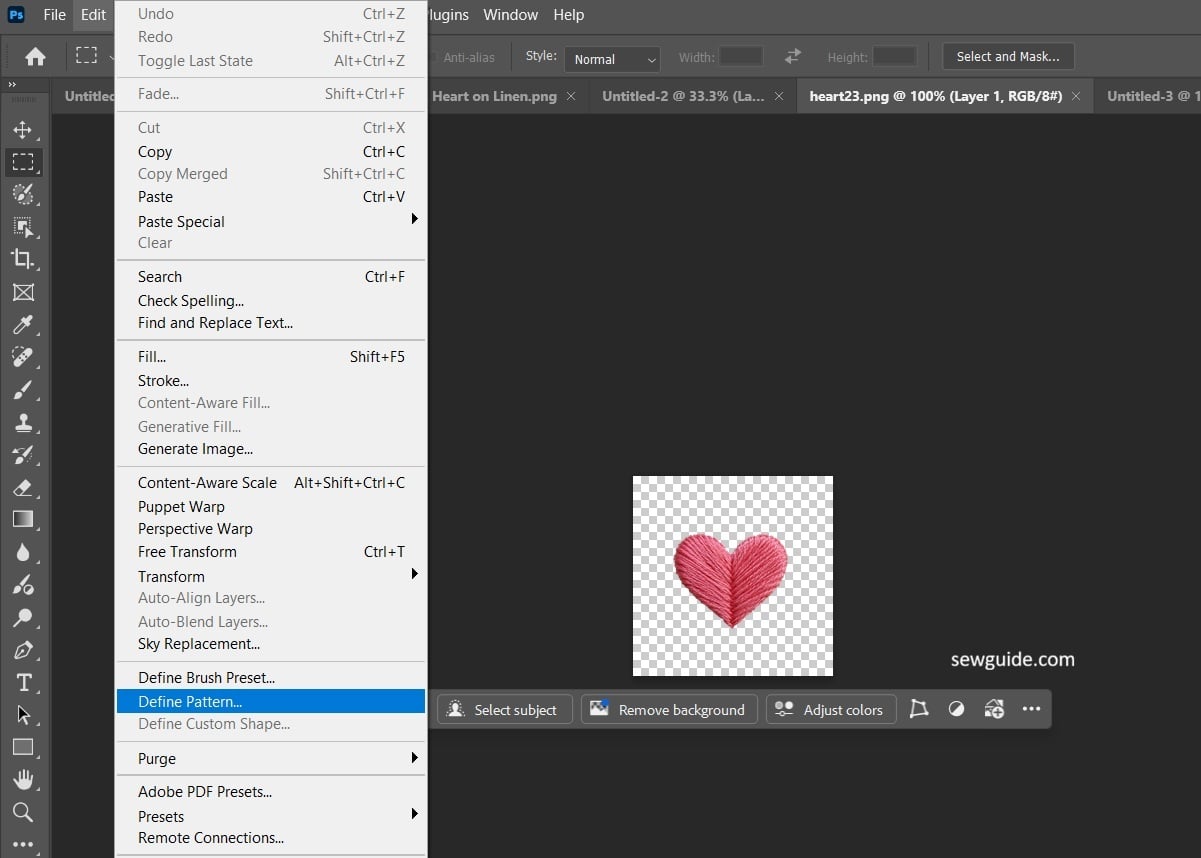
This creates your pattern file. This will appear on your pattern dashboard (Open Window -Patterns to see this) when you need it.
Step 2. Set up the canvas
Steps to set up the tile.
The size of this tile depends on the scale of your motif or motifs.
Open a new file in Photoshop. As I said the size of your file depends on the print. For small motifs like this motif, you can design your canvas to be a 6″ square. For larger motifs, use a 10 to 12″ canvas.
You have to know your printer resolution – when you add the resolution on Photoshop it automatically converts the size into pixels – for eg usually printers need a resolution of 300 dpi, and your 12″ tile will automatically be converted to a 3600 px square file.
Go to File > New.
Set dimensions to fit your design. Set resolution to 300 DPI.
Step 3. Make repeat pattern
There are 2 methods to make the repeat pattern . One is to let the tool do the work for you. It is coded to make the exact mathematical calculations needed to create the seamless patterns. The other one is to do it manually. For this I think the pencil tool with other tools like procreate and ipad are better I think.
Method 1.
Use the Edit – Fill option
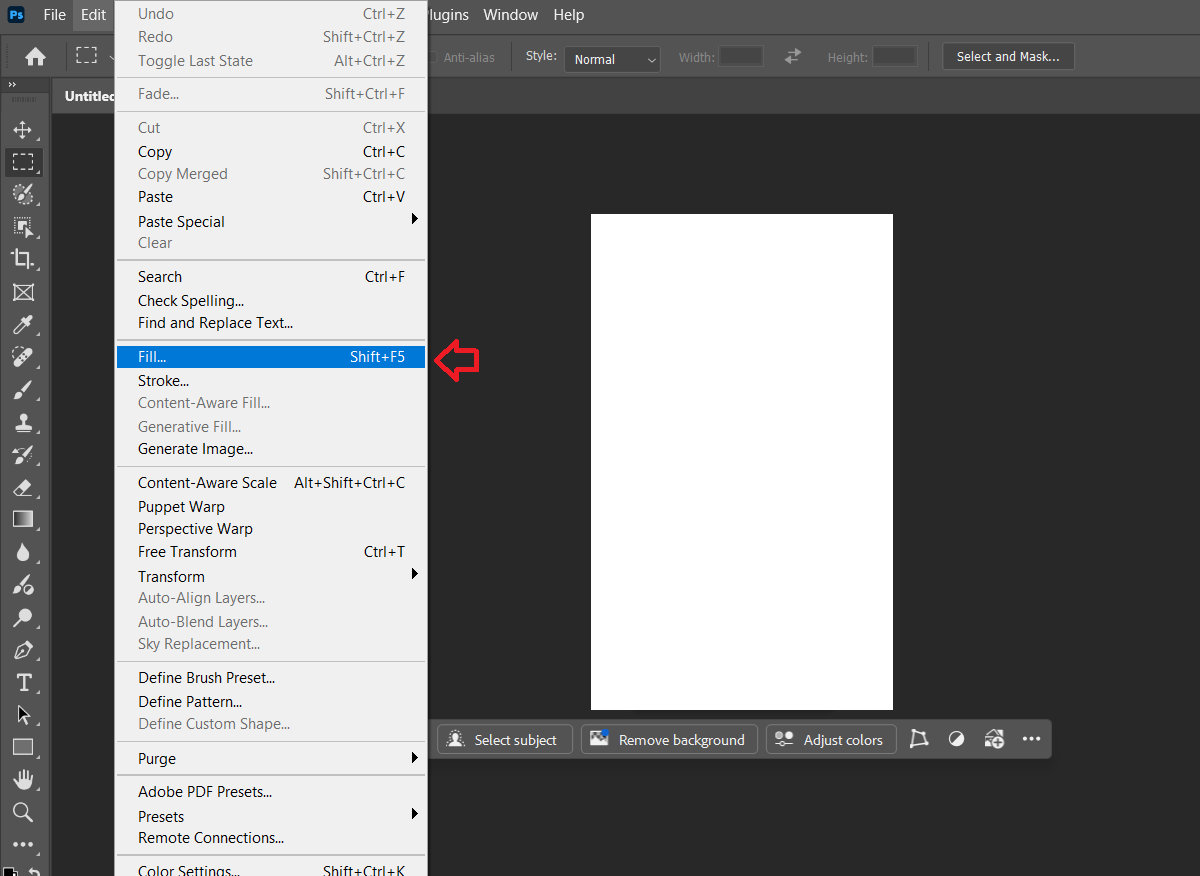
Edit – Fill
Set content to Pattern
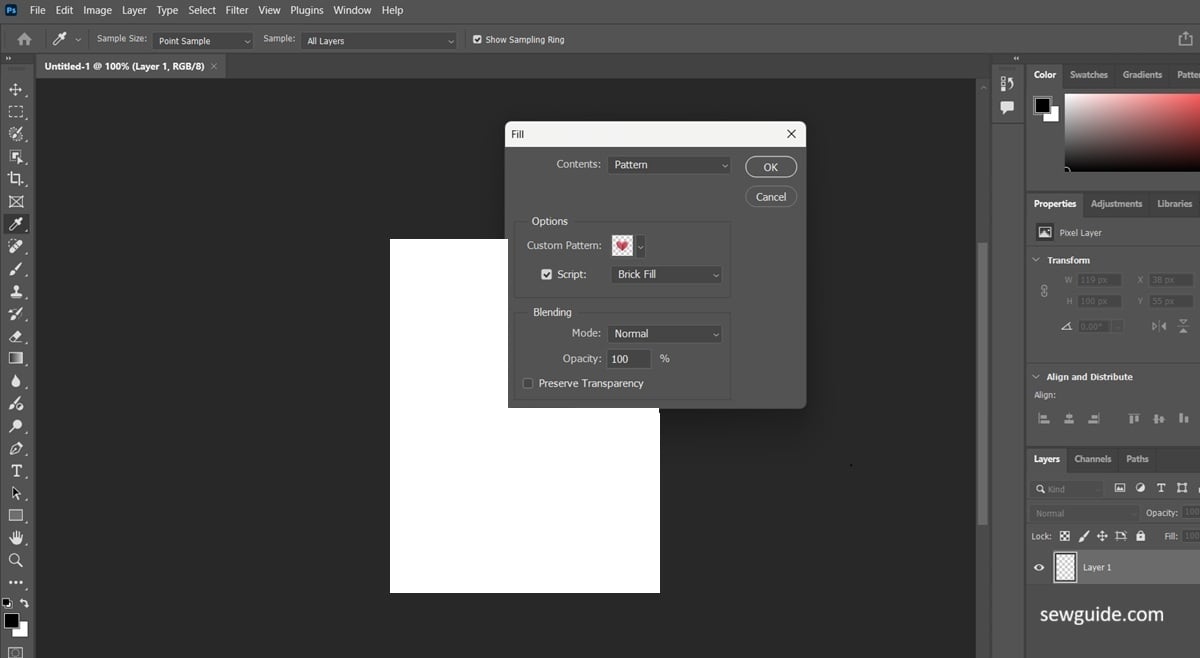
Choose your pattern – click on the custom pattern and select the heart motif you have saved there.
As Script choose Brick fill
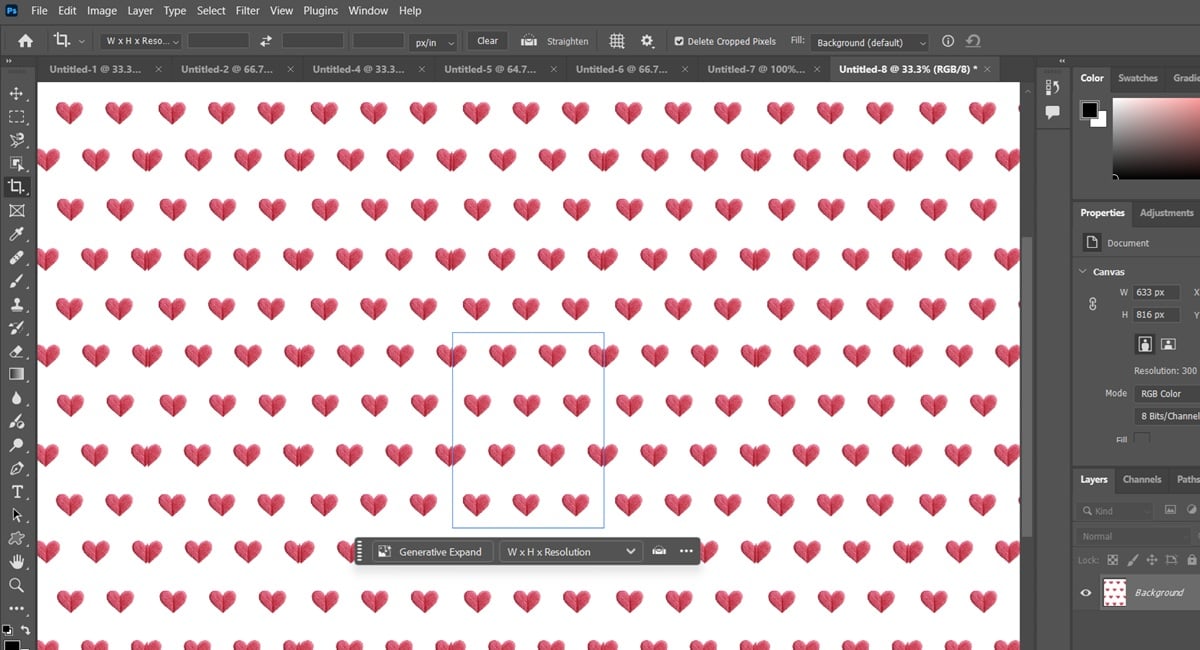
Brick Fill : Every row is shifted by half a tile, like bricks. I use this to create the half drop look . Half drop in my opinion is one of the most popular pattern repeats, similar to brick. It simply feels like the heart just fills the whole fabric in a natural scattered look. The heart is shifted down in every row by exactly half the height of the repeat. The staggered layout fills the fabric evenly without it looking crowded or lined up like a grid.
I chose Brick fill to get this effect. And also moved the slider Offset between rows to 50% – this creates the half drop pattern.
Other options if you want other fabric repeats are:
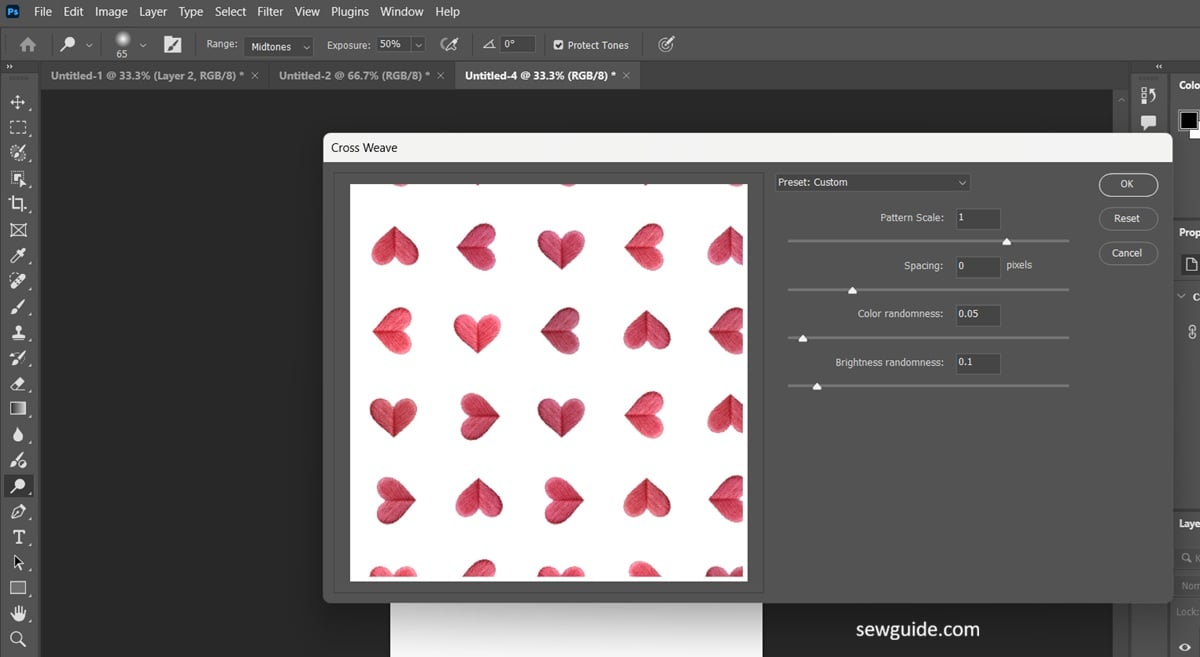
Cross weave – you can place the motifs in a criss cross pattern like in the picture below.
Random fill : This option scatters the motif at random positions and angles. You can somewhat control where they are placed with sliders giving you options.
Spiral : Self explanatory – the motifs are arranged in a spiral shape.
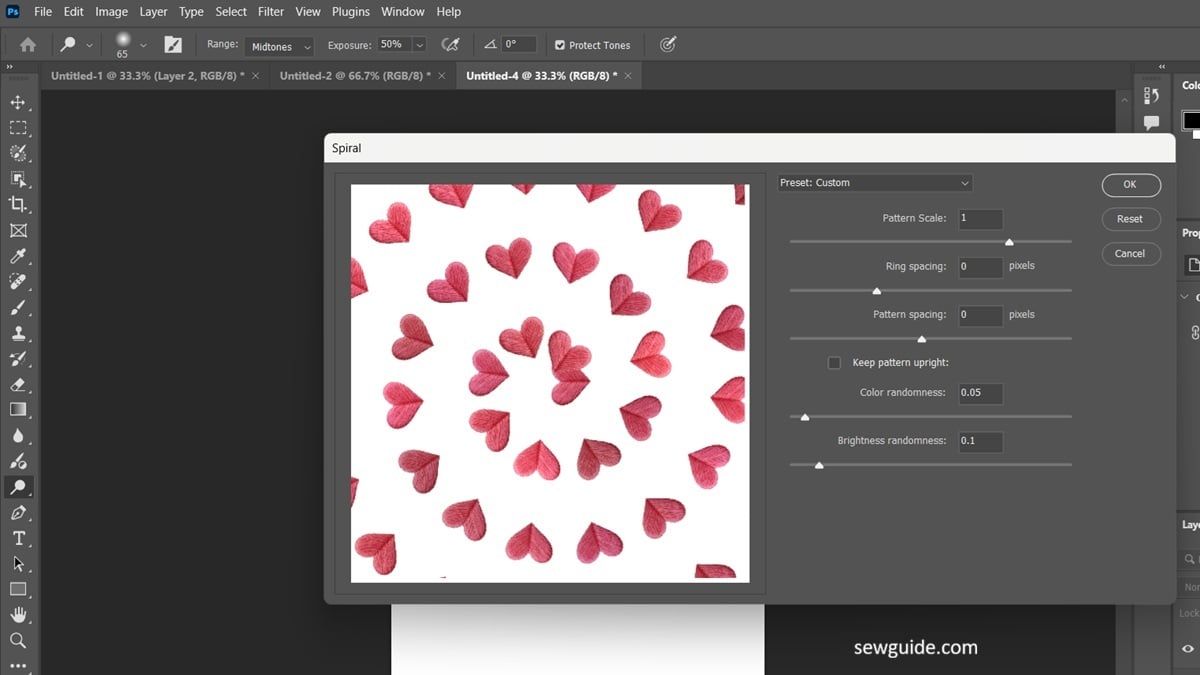
Symmetry fill – This creates a mirrored kaleidoscope style arrangement.
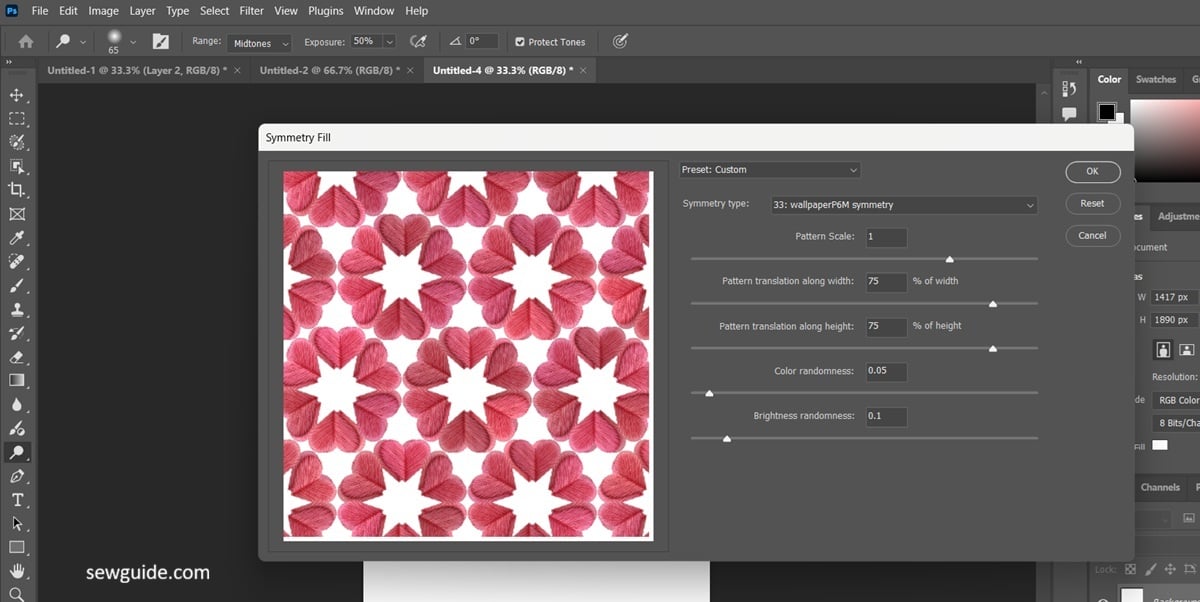
When you select one of these, a window opens which gives you more options. The other sliders you can adjust are these
Pattern Scale: Adjust this slider to make the hearts smaller or larger to fit your print scale.
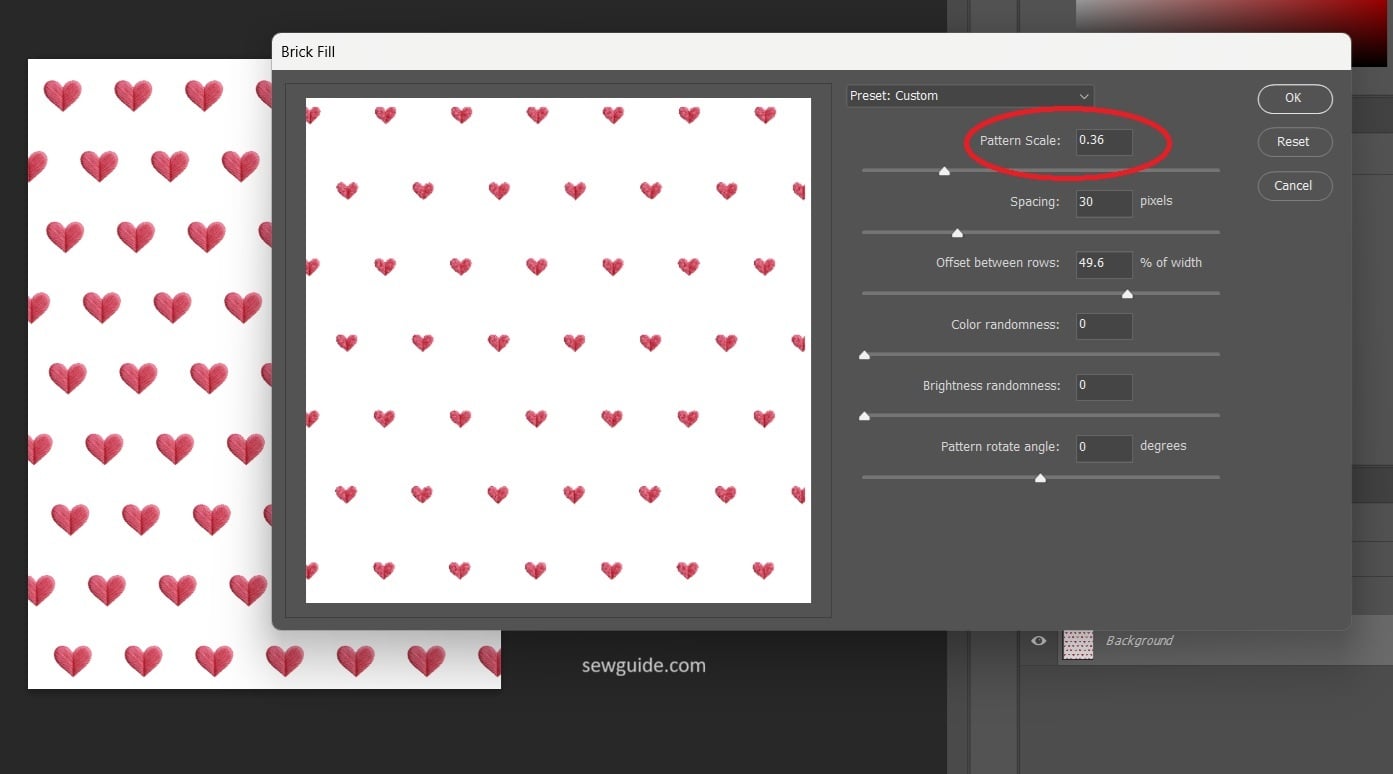
Spacing: Increase or decrease the spacing sliders to add padding between the hearts.
Color / Brightness Randomness: Leave these at 0 or change it to create different colors for each of your motifs. Have fun.
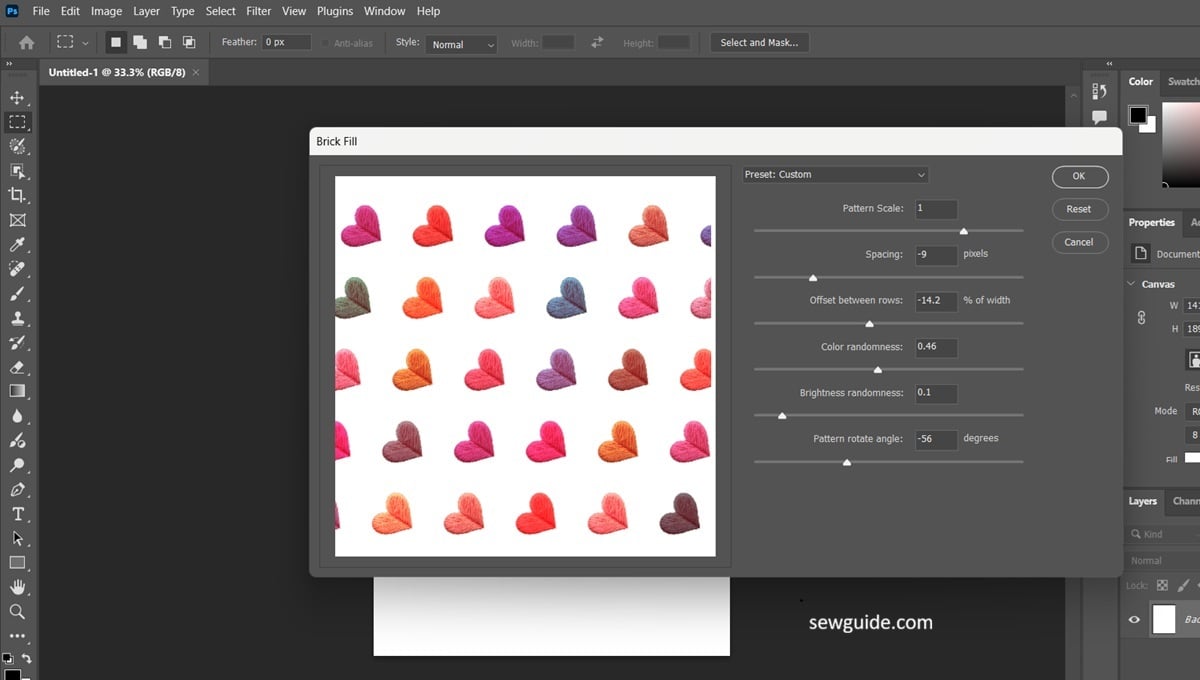
Rotate to Pattern: I left it at 0 so all hearts stay upright. But if you want you can shift the orientation of the motifs this way
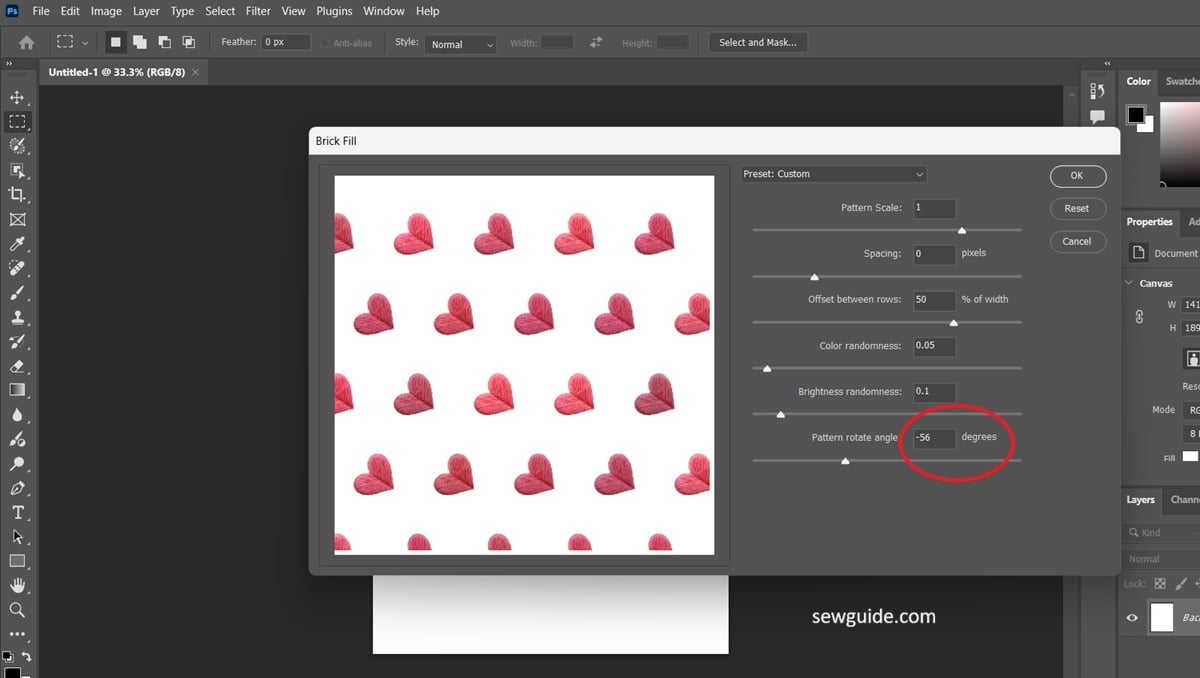
You have made a tile now. But this tile is not perfect – if you use this tile and preview it, it will not look seamless. It is just an individual stand alone tile- not fit for seamless patterns.
Step 4 Prepare the tile for repetition
In the above step, the Fill is used for making a stand alone file in itself. You have to adjust it so that it can be converted into a whole pattern file
The tile’s edges have to match the opposite edges for it to print seamlessly. In this design, I know that the printer will print my fabric with this tile adjacently and then the left edge of the design of the second tile will have to fit in correctly with the right edge of the first tile. Other wise it will be a disaster. I may get half hearts, double hearts, partial hearts…..
My method is to crop the tile so that it will be perfect. Do this till you get the perfect tile. I will select an area of the design with some white space on either side of the design and if that is not possible, cuts across the motifs equally.
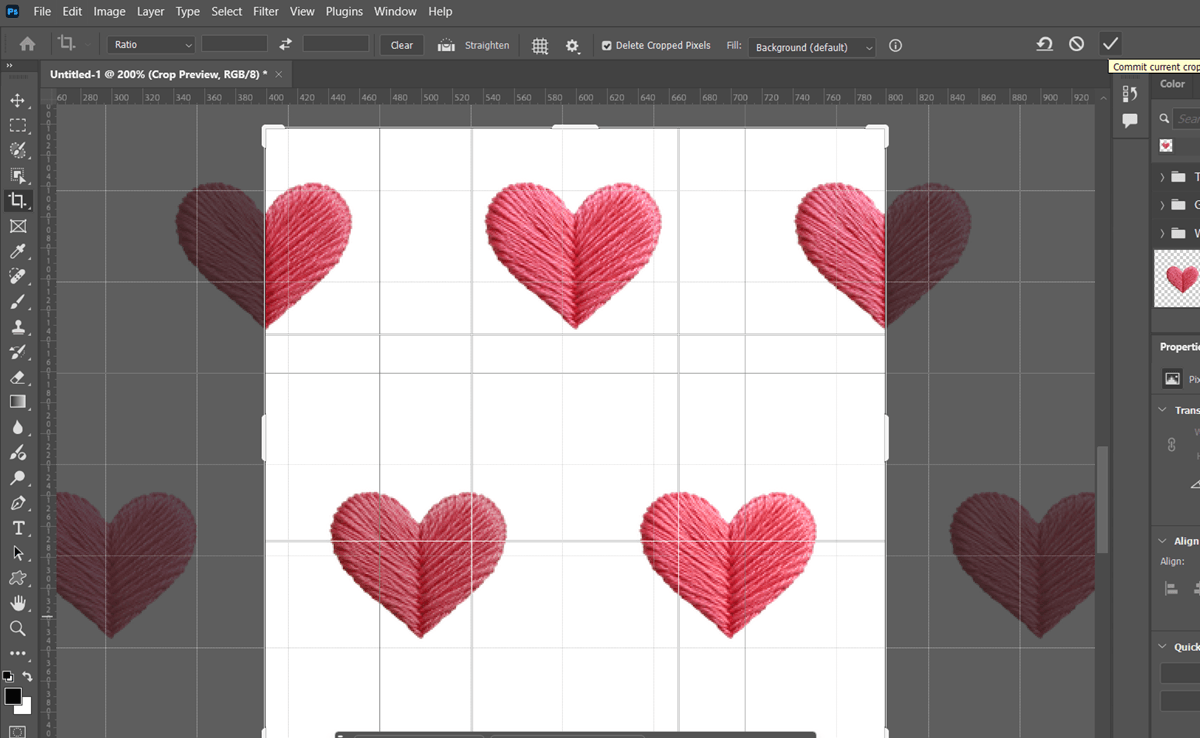
Crop it – just click on the tick mark on the menu and you have a cropped tile.
Now view it in Pattern Review.
Step 4 Test the Repeat with Pattern Preview
View – Pattern review
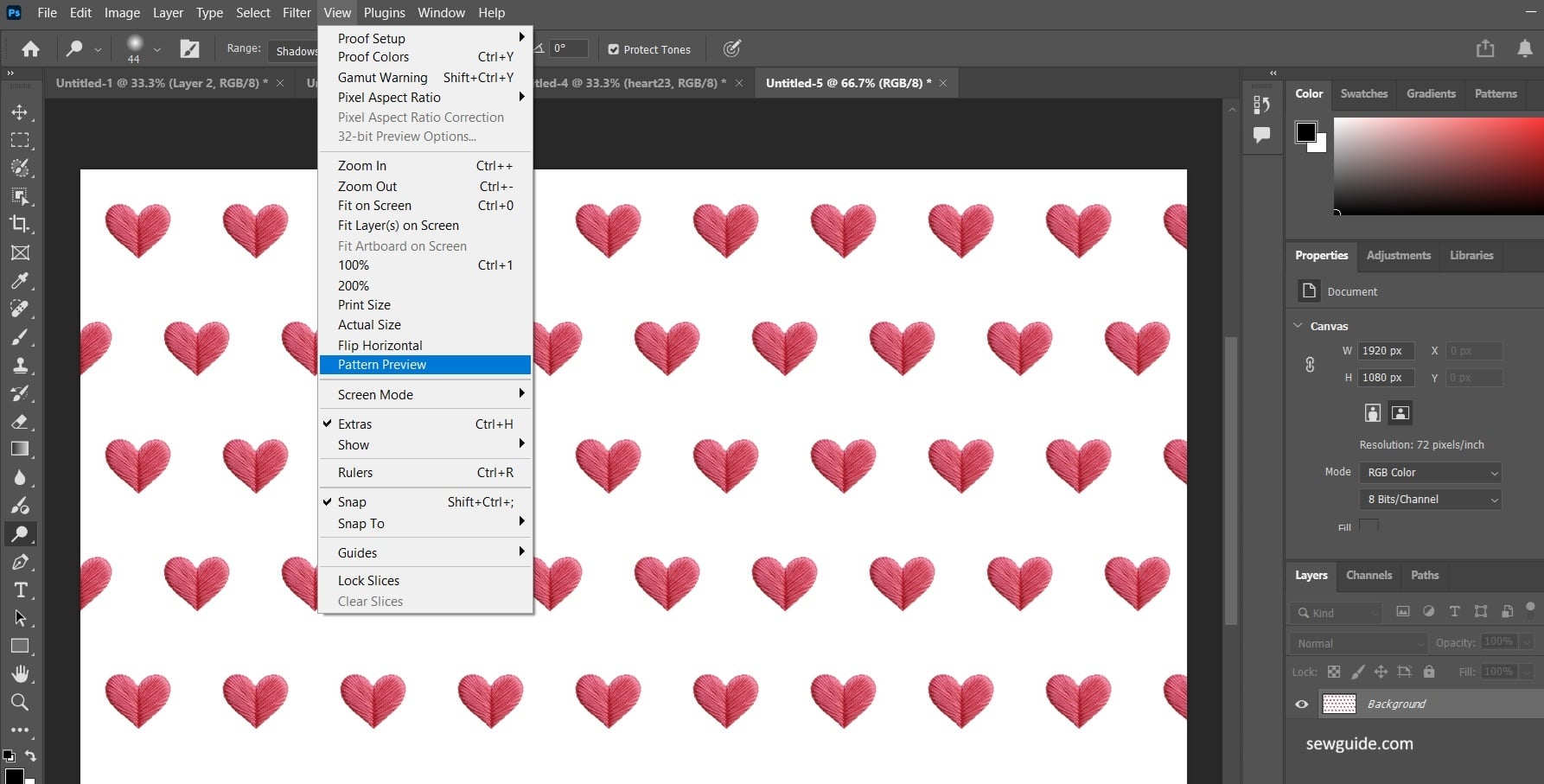
Pattern preview is the hack in Photoshop to see the seamless repeat patterns – it shows you how it will look finally on your fabric.
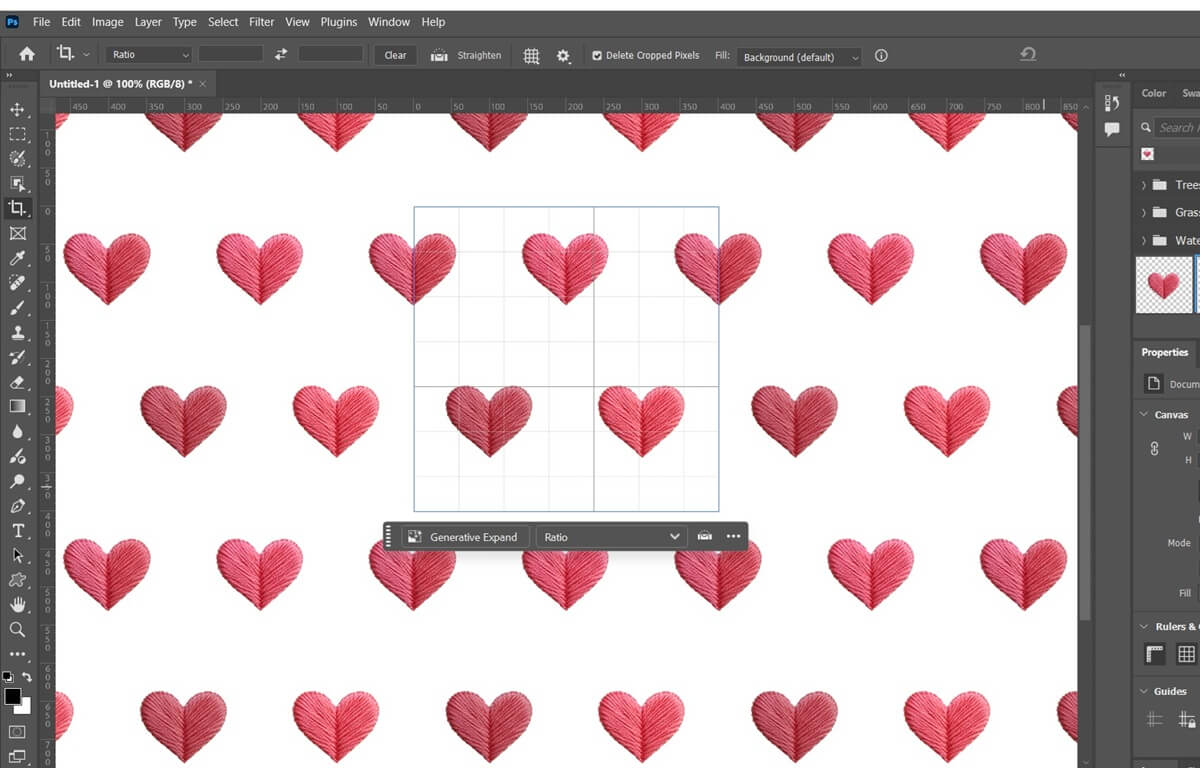
This tool places your tile on a drone-type view -it automatically duplicates your tile and shows you how it will look on your fabric – with the tile repeated all across.
You will get a perfectly seamless pattern (If you have cropped the file perfectly)
Zoom out to check that the spacing is ok for you, and looks natural (or unnatural, however you want), visually balanced. Keep on checking for half hearts, double hearts and gaps along the joins. If the preview shows a problem go back and rectify.
Turn off the Pattern Preview – remember that it is just a preview of what your tile will look if it is printed on a large scale.
Save the tile image as a high-resolution PNG as per your printer’s instructions.
Method 2. Making the pattern manually
The other method is to position the Hearts one by one as you wish, as I said, in a tossed pattern; if you want exact placements you are better with the guides turned on.
Turn on Rulers & Snap: Press Ctrl + R (Show Rulers) and go to View > Snap To > Guides.
Place your heart icon on Layer 1. Scale it to the desired size and duplicate and place it as you wish.
Make sure that the motifs are placed within the tile edges. When you duplicate the motifs, they go on as a different layer, which you can position as you want.
Run Filter – Other – Offset at half the tile width and half the tile height with wrap around on. This moves the edges into the middle of the tile, where you can see the gaps as a cross. Add more hearts to fill those gaps and leave the outer edges alone. Because the edges are already matched, your pattern will look seamless when it repeats.
Now turn on the Pattern Preview. The pattern preview lets you see how your full pattern looks- you can see that there are gaps in your pattern.
Now you can add more layers / motifs to cover the gaps at the edges so that your pattern looks seamless.
Related posts : Names of all the patterns used in fabrics ; Fabric Pattern repeat categories
